
Quickstart#
Installation#
DiscoDOS is available via PyPI and can be installed like this:
pipx install discodos
Tip
In case you are not familiar with installing Python packages, please head over to Setup for step by step instructions.
Importing your Discogs collection and Marketplace inventory#
To let DiscoDOS know about our Discogs record collection we have to import a subset of the available information to the local database (the so-called DiscoBASE).
dsc import basic
dsc import sales
Tip
There are more things that can be imported. Read on in chapter The import command group
Basic Usage Tutorial - Selling Records#
Make sure your local sales inventory is up to date and re-run:
dsc import sales
List a record for sale with the “sell wizard”. Don’t pass the -p/--price option! You’ll receive price suggestions and will be prompted to accept or adjust the recommendations interactively.
dsc sell big bad bass
You’ll be prompted for the sleeve condition:
Sleeve Condition [M/NM/VG+/VG/G+/G/F/P/generic/notgraded/nocover] (generic):
Note
The sell command has some built-in defaults, most importantly VG+ for -c/--condition and draft for the -a/--status option. Defaults are documented in the command’s online help
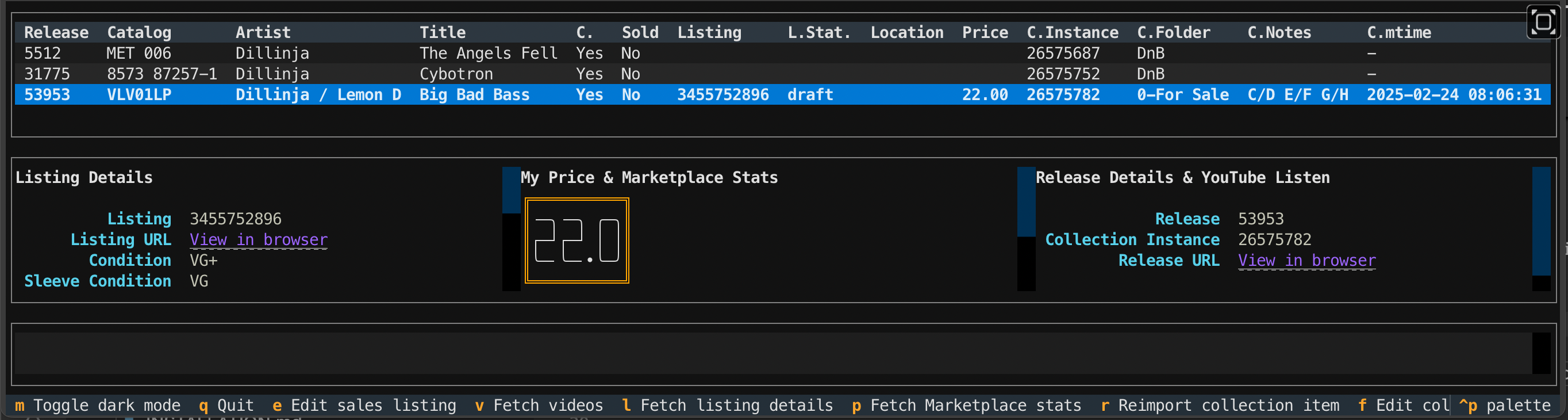
To edit existing sales listings, use the DiscoDOS ls TUI command:
dsc ls artist=dillinja
Tip
dsc ls lists records in a fancy graphical but still text-based user interface. Press e to edit a sales listing. Further helpful key commands are v display video links and p to find out Discogs suggested prices. Learn more key commands here.
Basic Usage Tutorial - Mixes#
This is a slightly more detailed tutorial about documenting a new DJ mix. Recommended if unfamiliar with UNIX-style CLI tools. Also consider reading the commandline tools primer chapter first
dsc mix my_mix -c
View your (empty) mix:
dsc mix my_mix
Try adding one of your collection’s tracks to the “mix” you just created.
dsc mix my_mix -a "Amon Tobin Killer Vanilla"
If DiscoDOS realizes you are offline it will search in the local database only. Only online search understands track names, offline search doesn’t, it needs artists and/or release names. Learn why, further below.
Be precise when asked for the track number on the record: A1 is not the same as A.
View your mix again, your track should be there. verbose view (-v) shows that track and artist names are still missing because DiscoDOS by default is minimalistic - the initial import command did not fetch this data yet:
dsc mix my_mix -v
Add some more tracks!
Now get track artist/titles for all the tracks in the mix. If track numbers are not precise (eg A vs A1) data won’t be found!
dsc mix my_mix -u
Use the verbose mode to see all the details pulled from Discogs:
dsc mix my_mix -v
Ask what more you could do with your mix and its tracks (short option would be -h):
dsc mix my_mix --help
Edit details of the third track in your mix:
dsc mix my_mix -e 3
There is also a bulk-edit option to edit specific fields of all tracks in the mix. Read about it in the command reference section of The mix command
Get additional data about your mix’s tracks from MusicBrainz and AcousticBrainz (key, BPM, links):
dsc mix my_mix -zz
Read more about the *Brainz update process here: The import command
FAQ#
This section answers common questions and guides you through typical DiscoDOS workflows. If you would rather like to read in-detail explanations of what each command is capable of, go to the DiscoDOS User’s Manual and the Commands Reference.
What’s the quickest way to document a mix?#
DiscoDOS can best help you when it’s feeded with as much of your DJ’ing habits as possible. Writing down a mix is done in a matter of minutes. Best you listen through a mix recording while having your records near you. Certainly a mix does not have to be a complete DJ set, it could just be some track combinations you like to play recently. Let’s get started by creating a new mix:
dsc mix my_mix -c
The easiest command to remember for adding tracks to the mix is this one:
dsc mix my_mix -a "artist title album"
If you hold the record in your hand and know exactly what track it is you played, the quickest way would be using the search subcommand, because the tracknumber on the record (A, B, A1, A2, etc.) can be given directly in the command. This spares you the question of which track on the record you’d like to add:
dsc search "artist title album" -m my_mix -t A2
Tip
Your search terms don’t have to include artist, title and album. Also label names and catalog numbers are valid.
While listening through an older recording it happens that you don’t remember what it was exactly you played. Just skip over an unknown track and move on with writing down the rest of the mix. When you’ve later figured out what it was you played, squeeze in tracks at the right position in the mix with:
dsc search "artist title album" -m my_mix -t A2 -p 12
The -p option works in combination with the mix subcommands well:
dsc mix my_mix -a "artist title album" -p 12
Tip
If you are new to command line tools: Make use of your shells command history and re-use and edit your commands. Usually this is done using cursor keys up and down.
More about the subcommands used in this guide is found here: mix command, search command.
I’m stuck in a mix#
You’re in the process of compiling a mix for a gig. You just played this one tune that was really fitting well, but now you’re stuck and don’t know how to move on. You try out different records, nothing seems to work.
DiscoDOS can tell you in what combinations you ever played this tune in the past:
dsc suggest "search terms to find the tune"
Another option would be to let it show you a pool of tracks sharing similiar key and BPM:
dsc suggest -k Am -b 123
Tip
If your tune(s) do not have key and BPM data yet, let them “match” with MusicBrainz first, by using the update from *Brainz search action.
I’d like to quickly rate my transitions#
You are listening to a recording of a mix you have already documented into DiscoDOS and now would like to quickly rate your transitions, so you and DiscoDOS can learn from it.
Use the bulk-edit function to change specific fields of your mix’s tracks:
dsc mix "the mix name" -b trans_rating,trans_notes
Learn more about this function in the mix command section.
Note
Currently DiscoDOS rating analysis system is not finished. This might be coming in future version. As a preparations for this feature, you only are allowed to put these character combinations into the trans_rating field: ++, +, ~, -, –.
I got a new record and want to quickly use it in DiscoDOS without re-importing everything#
Search for the record on discogs.com. Copy the release ID or the whole URL (eg. https://discogs.com/release/123456) and import it:
dsc import release 123456
or
dsc import release https://discogs.com/release/123456
Get artist/title for each track
dsc search 123456 -u
Get key and BPM from MusicBrainz/AcousticBrainz:
dsc search 123456 -zz
Tip
Certainly you can always find a tune in your collection by using search terms. You don’t have to use the release ID. We use it here because we have it at hand already.,
A regular search command and starting *Brainz matching:
dsc search "new release new tune" -zz
There is another convenient way when you are in the process of writing down a mix, and realize you can’t find the release because you didn’t add it to the collection yet: Use the -a option of the mix subcommand. Then, instead of searching for a text-term, we hand over a Discogs release ID. DiscoDOS will look for this exact release ID and add it to your Discogs collection as well as to the local DiscoBASE. As expected with the mix -a commmand, the interactively selected track will be added to your mix too:
dsc mix fat_mix -a 123456
I’d like to get as much information about my music as possible - in one go#
As you’ve probably learned already, DiscoDOS doesn’t import all information about a record collection at once but rather “on user request”. Eg. single tracks or whole mixes can be asked to be filled in with additional data from Discogs or AcousticBrainz. When dealing with record collections containing hundreds or even thousands of records, obviously working through all of them via the APIs of online information services takes a lot of time, but certainly DiscoDOS can be asked to do it:
To make a full import of your whole record collection from Discogs (all releases INCLUDING all tracks on them) execute:
dsc import tracks
Tip
This command can also be used for an initial import (you just started using DiscoDOS and your DiscoBASE is still empty).
Note
1000 records including a total of 3000 tracks complete in about 20 minutes.
To get additional data from MusicBrainz and AcousticBrainz (key, BPM, weblinks to release- and recordingpages), execute:
dsc import brainz
Attention
This command requires a successfully completed import tracks command (see above) already.
Note
Depending on the size of your collection, this process might take many hours.
Tip
Read more on *Brainz matching and import performance in the the import command group chapter. You will also learn how to resume the process if for some reason the computer had to be switched off or the connection broke down.
Here’s a trick to execute both commands one after the other. We use the “command concatination” features of our shell:
On Windows, do:
dsc import tracks & dsc import brainz
on macOS or Linux:
dsc import tracks && dsc import brainz
Leave this running “overnight” - You will see a final summary after each of the commands completes, telling you the exact time it was running and how much information was processed and imported. If you’d like to help improve this manual, copy/paste your stats into a Github issue, it would help me a lot to state more accurate estimates here.
I’d like to use my DiscoBASE on multiple computers#
DiscoDOS includes a built-in backup and restore feature that can also be used to sync a DiscoBASE between multiple computers.
We need a place to store our discobase.db file online. Currently there are two options:
Dropbox
A folder on a webserver
This section will describe how to use Dropbox only, find the webserver option documented here: FIXME
To allow DiscoDOS access to your Dropbox account you need an access token. To obtain it follow the steps in chapter Configure Dropbox Access for discosync, then come back here.
To backup your DiscoBASE, execute:
discosync --backup or in short discosync -b
To restore it on another computer, execute:
discosync --restore or in short discosync -r
Tip
Certainly you can use this feature to backup and restore your DiscoBASE on one computer only. The commands are the same.
User’s Manual#
Even more details on what DiscoDOS can do is found in the User’s Manual. This quickstart guide should have given you a first impression on how things work, now consult the User’s Manual for advanced usage concepts. You will also find some background info on how things work and why.